다중 도구 에이전트 빌드
이 빠른 시작은 ADK(Agent Development Kit)를 설치하고, 여러 도구가 포함된 기본 에이전트를 설정하고, 터미널 또는 대화형 브라우저 기반 개발 UI에서 로컬로 실행하는 방법을 안내합니다.
이 빠른 시작은 Python 3.10+ 또는 Java 17+ 및 터미널 액세스가 가능한 로컬 IDE(VS Code, PyCharm, IntelliJ IDEA 등)를 가정합니다. 이 방법은 애플리케이션을 머신에서 완전히 실행하며 내부 개발에 권장됩니다.
1. 환경 설정 및 ADK 설치
2. 에이전트 프로젝트 생성
프로젝트 구조
다음과 같은 프로젝트 구조를 생성해야 합니다.
multi_tool_agent 폴더 생성:
Windows 사용자 참고 사항
다음 몇 단계에서 Windows에서 ADK를 사용할 때 다음 명령(mkdir, echo)이 일반적으로 null 바이트 및/또는 잘못된 인코딩으로 파일을 생성하므로 파일 탐색기 또는 IDE를 사용하여 Python 파일을 만드는 것이 좋습니다.
__init__.py
이제 폴더에 __init__.py 파일을 생성합니다.
__init__.py는 이제 다음과 같아야 합니다.
agent.py
동일한 폴더에 agent.py 파일을 생성합니다.
다음 코드를 agent.py에 복사하여 붙여넣습니다.
import datetime
from zoneinfo import ZoneInfo
from google.adk.agents import Agent

def get_weather(city: str) -> dict:
    """Retrieves the current weather report for a specified city.

    Args:
        city (str): The name of the city for which to retrieve the weather report.

    Returns:
        dict: status and result or error msg.
    """
    if city.lower() == "new york":
        return {
            "status": "success",
            "report": (
                "The weather in New York is sunny with a temperature of 25 degrees"
                " Celsius (77 degrees Fahrenheit)."
            ),
        }
    else:
        return {
            "status": "error",
            "error_message": f"Weather information for '{city}' is not available.",
        }


def get_current_time(city: str) -> dict:
    """Returns the current time in a specified city.

    Args:
        city (str): The name of the city for which to retrieve the current time.

    Returns:
        dict: status and result or error msg.
    """

    if city.lower() == "new york":
        tz_identifier = "America/New_York"
    else:
        return {
            "status": "error",
            "error_message": (
                f"Sorry, I don't have timezone information for {city}."
            ),
        }

    tz = ZoneInfo(tz_identifier)
    now = datetime.datetime.now(tz)
    report = (
        f'The current time in {city} is {now.strftime("%Y-%m-%d %H:%M:%S %Z%z")}'
    )
    return {"status": "success", "report": report}


root_agent = Agent(
    name="weather_time_agent",
    model="gemini-2.0-flash",
    description=(
        "Agent to answer questions about the time and weather in a city."
    ),
    instruction=(
        "You are a helpful agent who can answer user questions about the time and weather in a city."
    ),
    tools=[get_weather, get_current_time],
)
.env
동일한 폴더에 .env 파일을 생성합니다.
이 파일에 대한 추가 지침은 모델 설정 섹션에 설명되어 있습니다.
Java 프로젝트는 일반적으로 다음과 같은 프로젝트 구조를 가집니다.
project_folder/
├── pom.xml (또는 build.gradle)
├── src/
├── └── main/
│       └── java/
│           └── agents/
│               └── multitool/
└── test/
MultiToolAgent.java 생성
src/main/java/agents/multitool/ 디렉토리의 agents.multitool 패키지에 MultiToolAgent.java 소스 파일을 생성합니다.
다음 코드를 MultiToolAgent.java에 복사하여 붙여넣습니다.
package agents.multitool;

import com.google.adk.agents.BaseAgent;
import com.google.adk.agents.LlmAgent;
import com.google.adk.events.Event;
import com.google.adk.runner.InMemoryRunner;
import com.google.adk.sessions.Session;
import com.google.adk.tools.Annotations.Schema;
import com.google.adk.tools.FunctionTool;
import com.google.genai.types.Content;
import com.google.genai.types.Part;
import io.reactivex.rxjava3.core.Flowable;
import java.nio.charset.StandardCharsets;
import java.text.Normalizer;
import java.time.ZoneId;
import java.time.ZonedDateTime;
import java.time.format.DateTimeFormatter;
import java.util.Map;
import java.util.Scanner;

public class MultiToolAgent {

    private static String USER_ID = "student";
    private static String NAME = "multi_tool_agent";

    // The run your agent with Dev UI, the ROOT_AGENT should be a global public static final variable.
    public static final BaseAgent ROOT_AGENT = initAgent();

    public static BaseAgent initAgent() {
        return LlmAgent.builder()
            .name(NAME)
            .model("gemini-2.0-flash")
            .description("Agent to answer questions about the time and weather in a city.")
            .instruction(
                "You are a helpful agent who can answer user questions about the time and weather"
                    + " in a city.")
            .tools(
                FunctionTool.create(MultiToolAgent.class, "getCurrentTime"),
                FunctionTool.create(MultiToolAgent.class, "getWeather"))
            .build();
    }

    public static Map<String, String> getCurrentTime(
        @Schema(name = "city",
                description = "The name of the city for which to retrieve the current time")
        String city) {
        String normalizedCity =
            Normalizer.normalize(city, Normalizer.Form.NFD)
                .trim()
                .toLowerCase()
                .replaceAll("(\\p{IsM}+|\\p{IsP}+)", "")
                .replaceAll("\\s+", "_");

        return ZoneId.getAvailableZoneIds().stream()
            .filter(zid -> zid.toLowerCase().endsWith("/" + normalizedCity))
            .findFirst()
            .map(
                zid ->
                    Map.of(
                        "status",
                        "success",
                        "report",
                        "The current time in "
                            + city
                            + " is "
                            + ZonedDateTime.now(ZoneId.of(zid))
                            .format(DateTimeFormatter.ofPattern("HH:mm"))
                            + "."))
            .orElse(
                Map.of(
                    "status",
                    "error",
                    "report",
                    "Sorry, I don't have timezone information for " + city + "."));
    }

    public static Map<String, String> getWeather(
        @Schema(name = "city",
                description = "The name of the city for which to retrieve the weather report")
        String city) {
        if (city.toLowerCase().equals("new york")) {
            return Map.of(
                "status",
                "success",
                "report",
                "The weather in New York is sunny with a temperature of 25 degrees Celsius (77 degrees"
                    + " Fahrenheit).");

        } else {
            return Map.of(
                "status", "error", "report", "Weather information for " + city + " is not available.");
        }
    }

    public static void main(String[] args) throws Exception {
        InMemoryRunner runner = new InMemoryRunner(ROOT_AGENT);

        Session session =
            runner
                .sessionService()
                .createSession(NAME, USER_ID)
                .blockingGet();

        try (Scanner scanner = new Scanner(System.in, StandardCharsets.UTF_8)) {
            while (true) {
                System.out.print("\nYou > ");
                String userInput = scanner.nextLine();

                if ("quit".equalsIgnoreCase(userInput)) {
                    break;
                }

                Content userMsg = Content.fromParts(Part.fromText(userInput));
                Flowable<Event> events = runner.runAsync(USER_ID, session.id(), userMsg);

                System.out.print("\nAgent > ");
                events.blockingForEach(event -> System.out.println(event.stringifyContent()));
            }
        }
    }
}
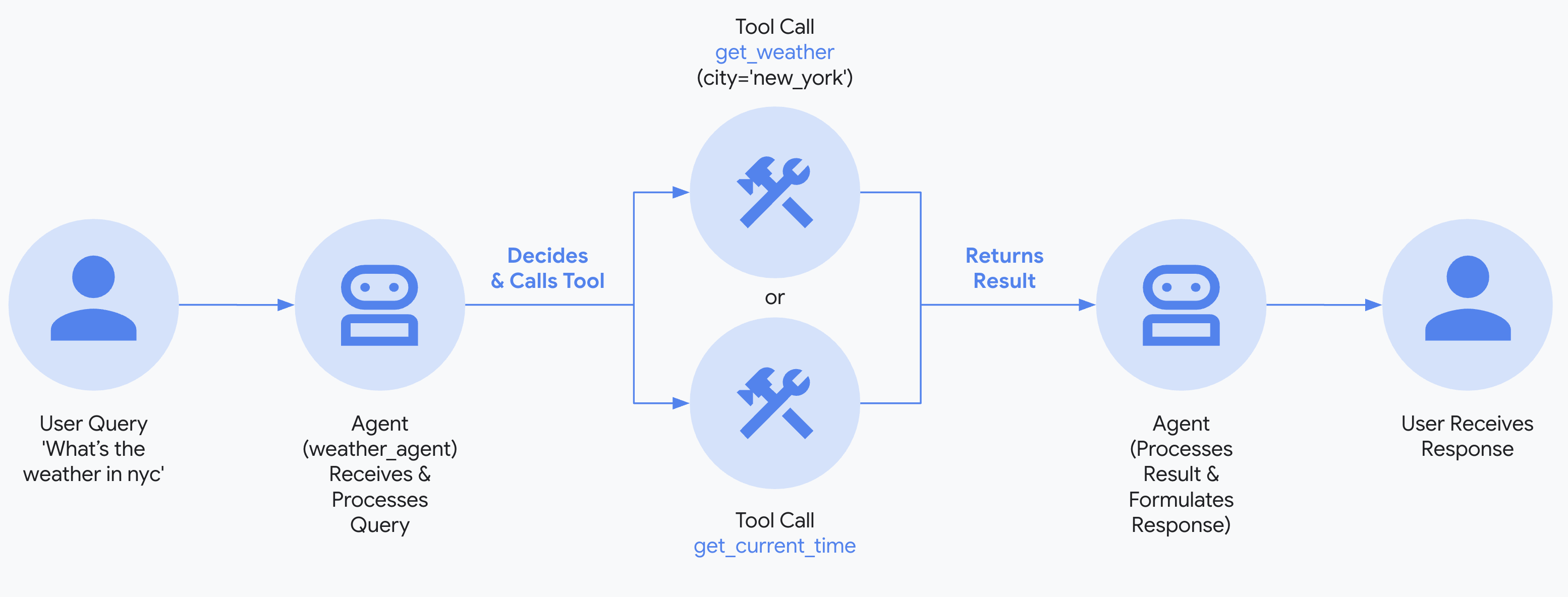
3. 모델 설정
에이전트가 사용자 요청을 이해하고 응답을 생성하는 기능은 LLM(대규모 언어 모델)에 의해 구동됩니다. 에이전트는 이 외부 LLM 서비스에 보안 호출을 수행해야 하며, 이는 인증 자격 증명이 필요합니다. 유효한 인증 없이는 LLM 서비스가 에이전트의 요청을 거부하고 에이전트는 작동할 수 없습니다.
모델 인증 가이드
다양한 모델에 대한 인증에 대한 자세한 가이드는 인증 가이드를 참조하십시오. 이것은 에이전트가 LLM 서비스에 호출을 할 수 있도록 하는 중요한 단계입니다.
- Google AI Studio에서 API 키를 가져옵니다.
-
Python을 사용하는 경우 (
multi_tool_agent/) 내에 있는.env파일을 열고 다음 코드를 복사하여 붙여넣습니다.Java를 사용하는 경우 환경 변수를 정의합니다.
-
PASTE_YOUR_ACTUAL_API_KEY_HERE를 실제API KEY로 바꿉니다.
- Google Cloud 프로젝트를 설정하고 Vertex AI API를 활성화합니다.
- gcloud CLI를 설정합니다.
- 터미널에서
gcloud auth application-default login을 실행하여 Google Cloud에 인증합니다. -
Python을 사용하는 경우 (
multi_tool_agent/) 내에 있는.env파일을 엽니다. 다음 코드를 복사하여 붙여넣고 프로젝트 ID와 위치를 업데이트합니다.multi_tool_agent/.envGOOGLE_GENAI_USE_VERTEXAI=TRUE GOOGLE_CLOUD_PROJECT=YOUR_PROJECT_ID GOOGLE_CLOUD_LOCATION=LOCATIONJava를 사용하는 경우 환경 변수를 정의합니다.
- 무료 Google Cloud 프로젝트에 가입하고 적격 계정으로 Gemini를 무료로 사용할 수 있습니다!
- Vertex AI Express 모드가 포함된 Google Cloud 프로젝트를 설정합니다.
- Express 모드 프로젝트에서 API 키를 가져옵니다. 이 키는 ADK와 함께 Gemini 모델을 무료로 사용하고 Agent Engine 서비스에 액세스하는 데 사용할 수 있습니다.
-
Python을 사용하는 경우 (
multi_tool_agent/) 내에 있는.env파일을 엽니다. 다음 코드를 복사하여 붙여넣고 프로젝트 ID와 위치를 업데이트합니다.multi_tool_agent/.envGOOGLE_GENAI_USE_VERTEXAI=TRUE GOOGLE_API_KEY=PASTE_YOUR_ACTUAL_EXPRESS_MODE_API_KEY_HEREJava를 사용하는 경우 환경 변수를 정의합니다.
4. 에이전트 실행
터미널을 사용하여 에이전트 프로젝트의 상위 디렉토리로 이동합니다(예: cd .. 사용).
에이전트와 상호 작용하는 여러 가지 방법이 있습니다.
Vertex AI 사용자 인증 설정
이전 단계에서 "Gemini - Google Cloud Vertex AI"를 선택한 경우 개발 UI를 시작하기 전에 Google Cloud로 인증해야 합니다.
이 명령을 실행하고 프롬프트에 따릅니다.
참고: "Gemini - Google AI Studio"를 사용하는 경우 이 단계를 건너뛰십시오.
다음 명령을 실행하여 개발 UI를 시작합니다.
Windows 사용자 참고 사항
_make_subprocess_transport NotImplementedError가 발생하는 경우 대신 adk web --no-reload를 사용하는 것을 고려하십시오.
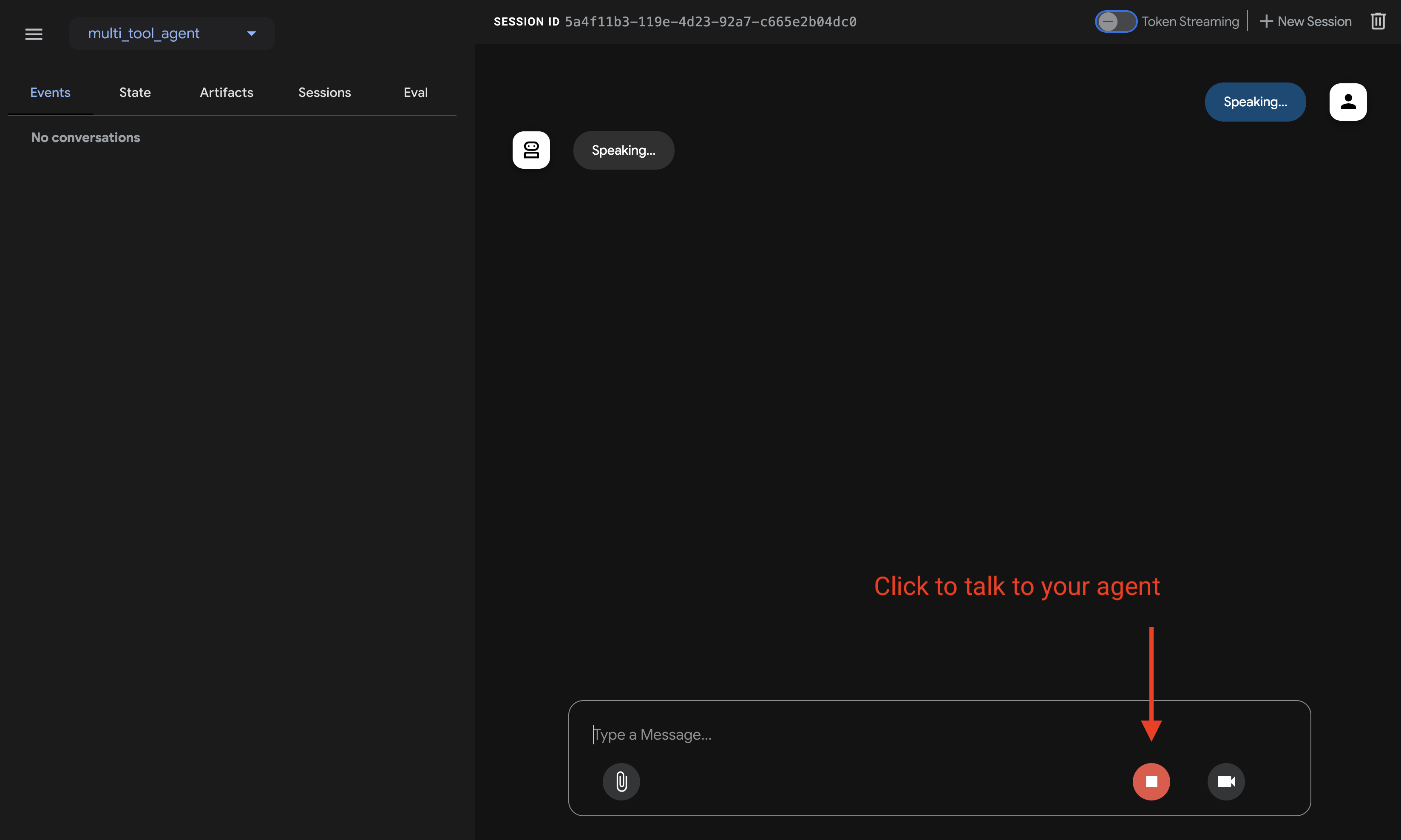
1단계: 제공된 URL(일반적으로 http://localhost:8000 또는 http://127.0.0.1:8000)을 브라우저에서 직접 엽니다.
2단계. UI의 왼쪽 상단 모서리에서 드롭다운에서 에이전트를 선택할 수 있습니다. "multi_tool_agent"를 선택합니다.
문제 해결
드롭다운 메뉴에 "multi_tool_agent"가 표시되지 않으면 에이전트 폴더의 상위 폴더(즉, multi_tool_agent의 상위 폴더)에서 adk web을 실행하고 있는지 확인하십시오.
3단계. 이제 텍스트 상자를 사용하여 에이전트와 대화할 수 있습니다.
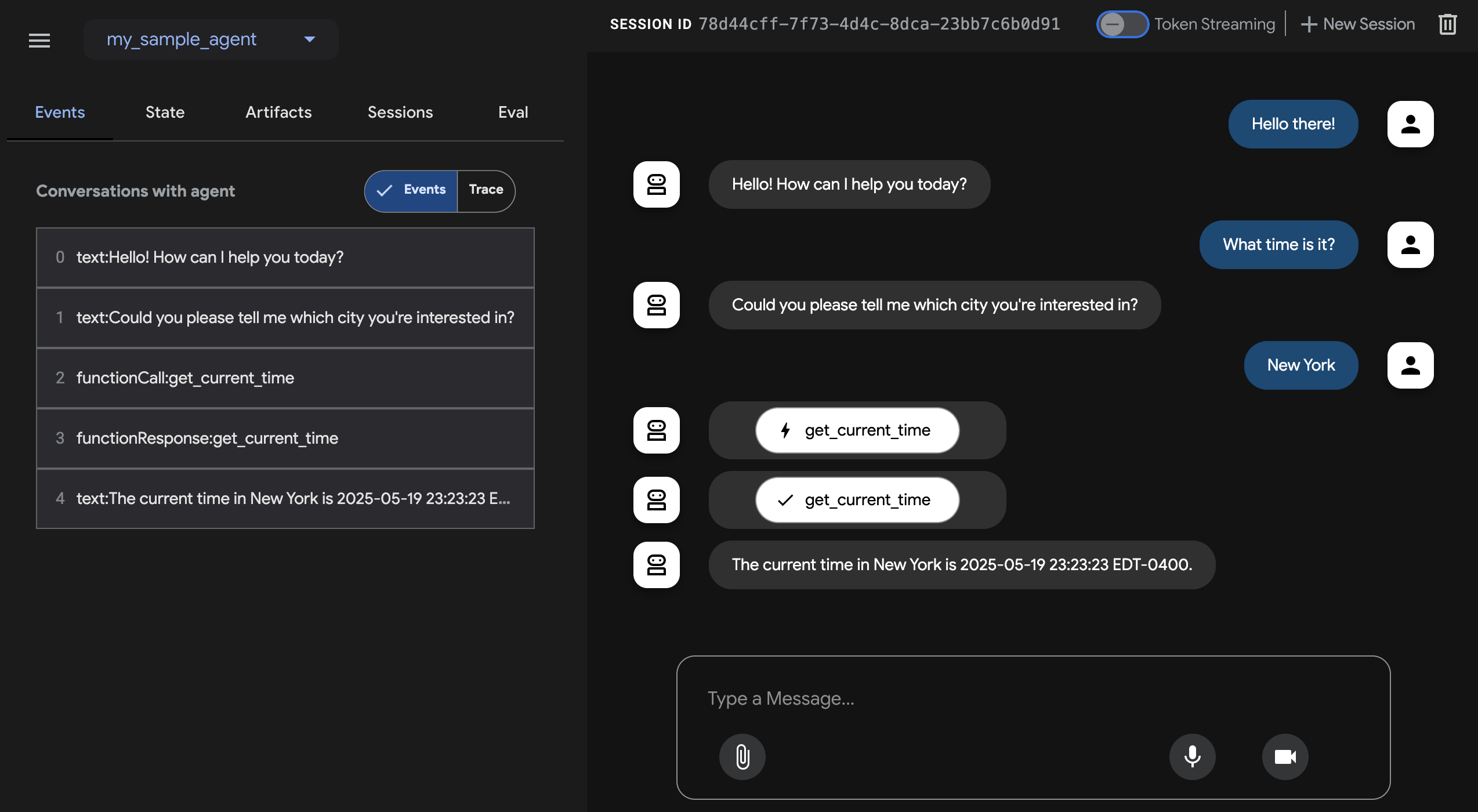
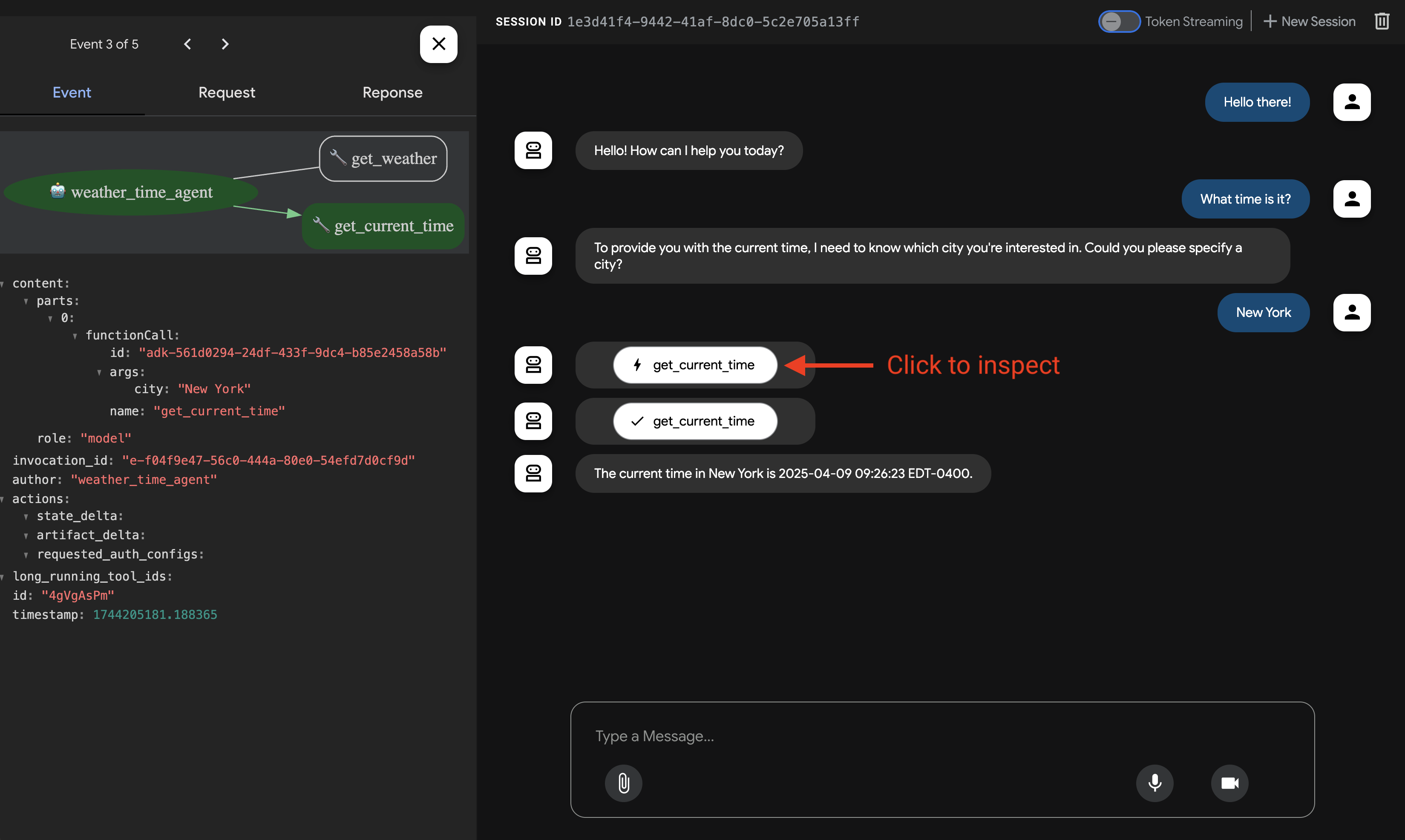
4단계. 왼쪽에 있는 이벤트 탭을 사용하여 작업을 클릭하여 개별 함수 호출, 응답 및 모델 응답을 검사할 수 있습니다.
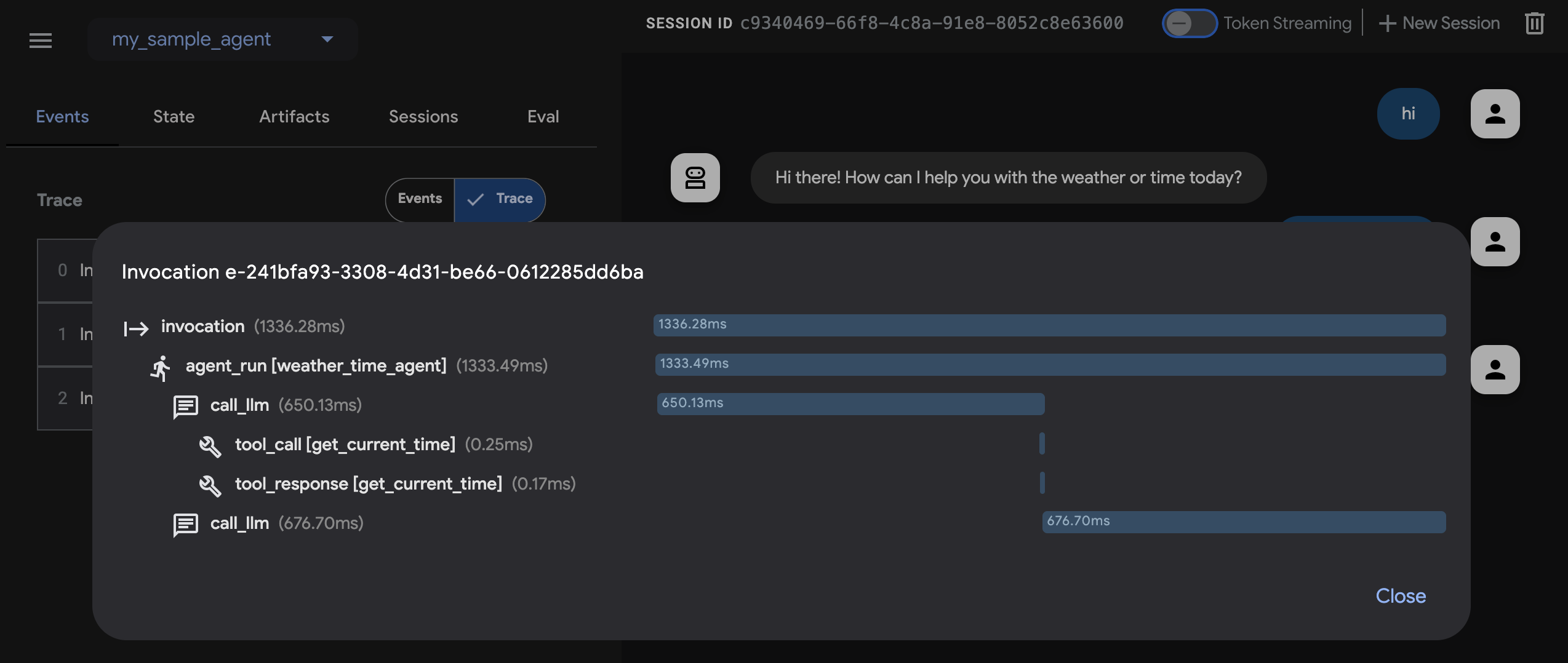
이벤트 탭에서 추적 버튼을 클릭하여 각 함수 호출의 지연 시간을 보여주는 각 이벤트에 대한 추적 로그를 볼 수도 있습니다.
5단계. 마이크를 활성화하고 에이전트와 대화할 수도 있습니다.
음성/영상 스트리밍을 위한 모델 지원
ADK에서 음성/영상 스트리밍을 사용하려면 라이브 API를 지원하는 Gemini 모델을 사용해야 합니다. Gemini 라이브 API를 지원하는 모델 ID는 다음 문서에서 찾을 수 있습니다.
그런 다음 이전에 만든 agent.py 파일의 root_agent에서 model 문자열을 바꿀 수 있습니다(섹션으로 이동). 코드는 다음과 같아야 합니다.
adk api_server를 사용하면 단일 명령으로 로컬 FastAPI 서버를 만들 수 있으므로 에이전트를 배포하기 전에 로컬 cURL 요청을 테스트할 수 있습니다.

adk api_server를 테스트에 사용하는 방법을 배우려면 API 서버 사용에 대한 문서를 참조하십시오.
터미널을 사용하여 에이전트 프로젝트의 상위 디렉토리로 이동합니다(예: cd .. 사용).
project_folder/                <-- 이 디렉토리로 이동
├── pom.xml (또는 build.gradle)
├── src/
├── └── main/
│       └── java/
│           └── agents/
│               └── multitool/
│                   └── MultiToolAgent.java
└── test/
다음 명령을 터미널에서 실행하여 개발 UI를 시작합니다.
개발 UI 서버의 메인 클래스 이름을 변경하지 마십시오.
mvn exec:java \
    -Dexec.mainClass="com.google.adk.web.AdkWebServer" \
    -Dexec.args="--adk.agents.source-dir=src/main/java" \
    -Dexec.classpathScope="compile"
1단계: 제공된 URL(일반적으로 http://localhost:8080 또는 http://127.0.0.1:8080)을 브라우저에서 직접 엽니다.
2단계. UI의 왼쪽 상단 모서리에서 드롭다운에서 에이전트를 선택할 수 있습니다. "multi_tool_agent"를 선택합니다.
문제 해결
드롭다운 메뉴에 "multi_tool_agent"가 표시되지 않으면 Java 소스 코드가 있는 위치(일반적으로 src/main/java)에서 mvn 명령을 실행하고 있는지 확인하십시오.
3단계. 이제 텍스트 상자를 사용하여 에이전트와 대화할 수 있습니다.
4단계. 개별 함수 호출, 응답 및 모델 응답을 클릭하여 검사할 수도 있습니다.
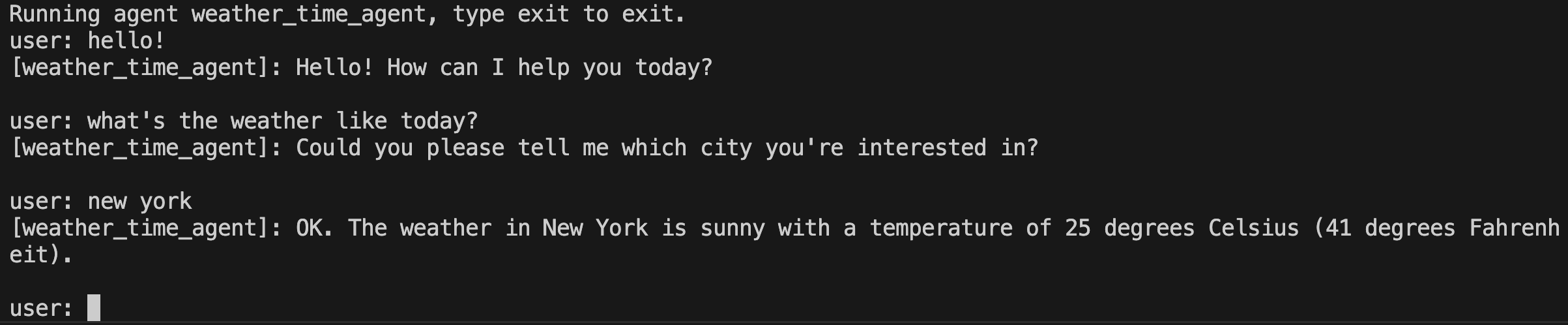
Maven을 사용하여 다음 명령으로 Java 클래스의 main() 메서드를 실행합니다.
Gradle을 사용하는 경우 build.gradle 또는 build.gradle.kts 빌드 파일의 plugins 섹션에 다음 Java 플러그인이 있어야 합니다.
그런 다음 빌드 파일의 다른 곳, 최상위 수준에서 에이전트의 main() 메서드를 실행하는 새 작업을 생성합니다.
tasks.register('runAgent', JavaExec) {
    classpath = sourceSets.main.runtimeClasspath
    mainClass = 'agents.multitool.MultiToolAgent'
}
마지막으로 명령줄에서 다음 명령을 실행합니다.
📝 시도할 예시 프롬프트
- 뉴욕의 날씨는 어떻습니까?
- 뉴욕의 시간은 몇 시입니까?
- 파리의 날씨는 어떻습니까?
- 파리의 시간은 몇 시입니까?
🎉 축하합니다!
ADK를 사용하여 첫 번째 에이전트를 성공적으로 만들고 상호 작용했습니다!